How The Visibility Fix works: a step-by-step tutorial with screenshots
A screen-by-screen walkthrough: set up your site, read your results, understand each fix, put it in place with Claude, and connect Google to track rankings.
The short answer
The Visibility Fix checks your website, Google profile and social bios with 39 checks, gives you a score out of 100, then walks you through one fix at a time. Each fix shows what is wrong, why it was flagged, the exact words to copy and the clicks for your platform.
The Visibility Fix tells you how easy you are to find on Google, in answer boxes and in AI assistants like ChatGPT, then shows you exactly what to change. This tutorial walks through every screen so you know what you are looking at and what to do next.
You do not need any tech skills. Plan on about 10 minutes to set up, then 15 to 60 minutes per fix, whenever suits you.
Step 1: Start on the homepage
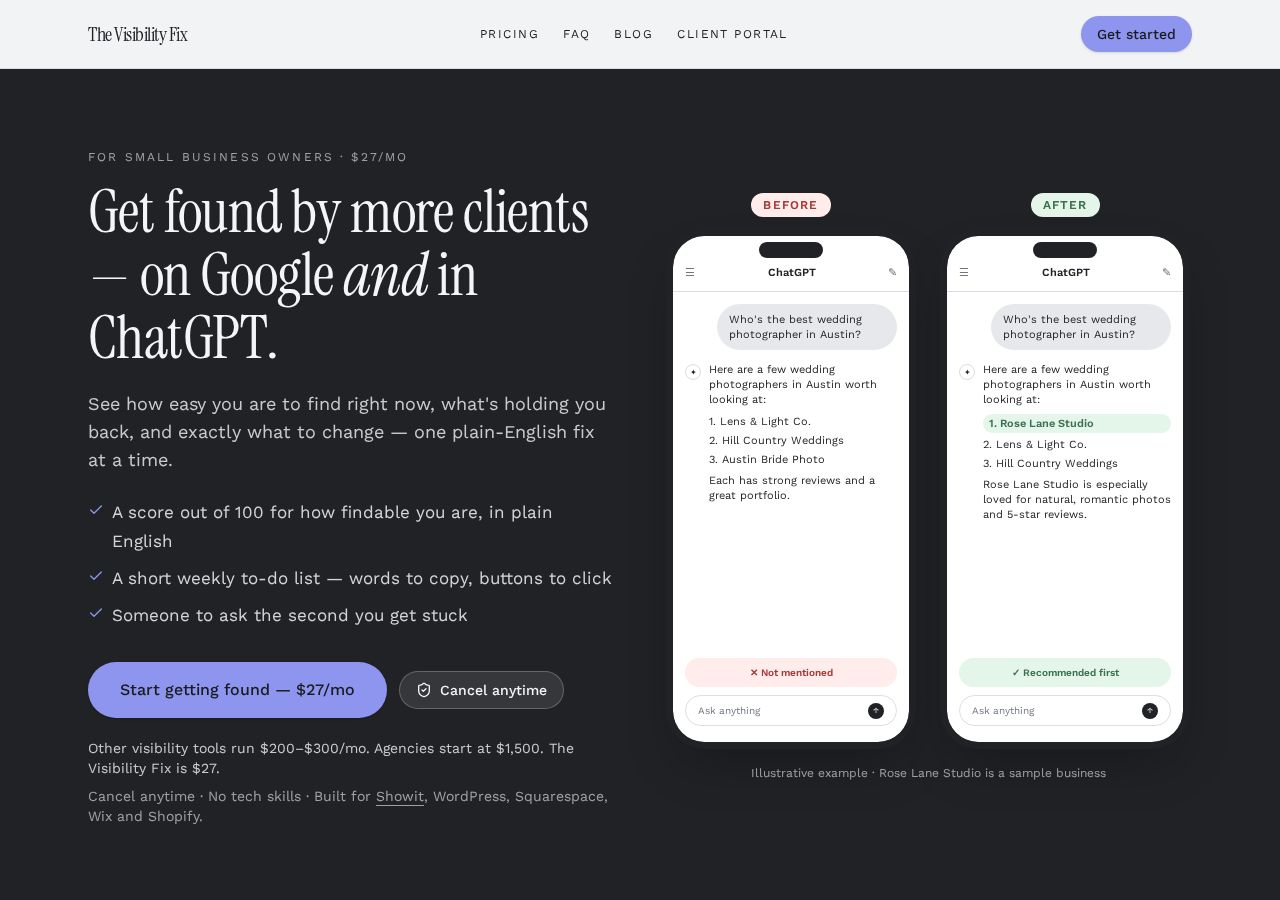
Run the free check to see your score and your top three issues. When you are ready for every fix and the step-by-step help, choose a plan and create your login with the same email you used at checkout.
Step 2: Answer the six setup questions
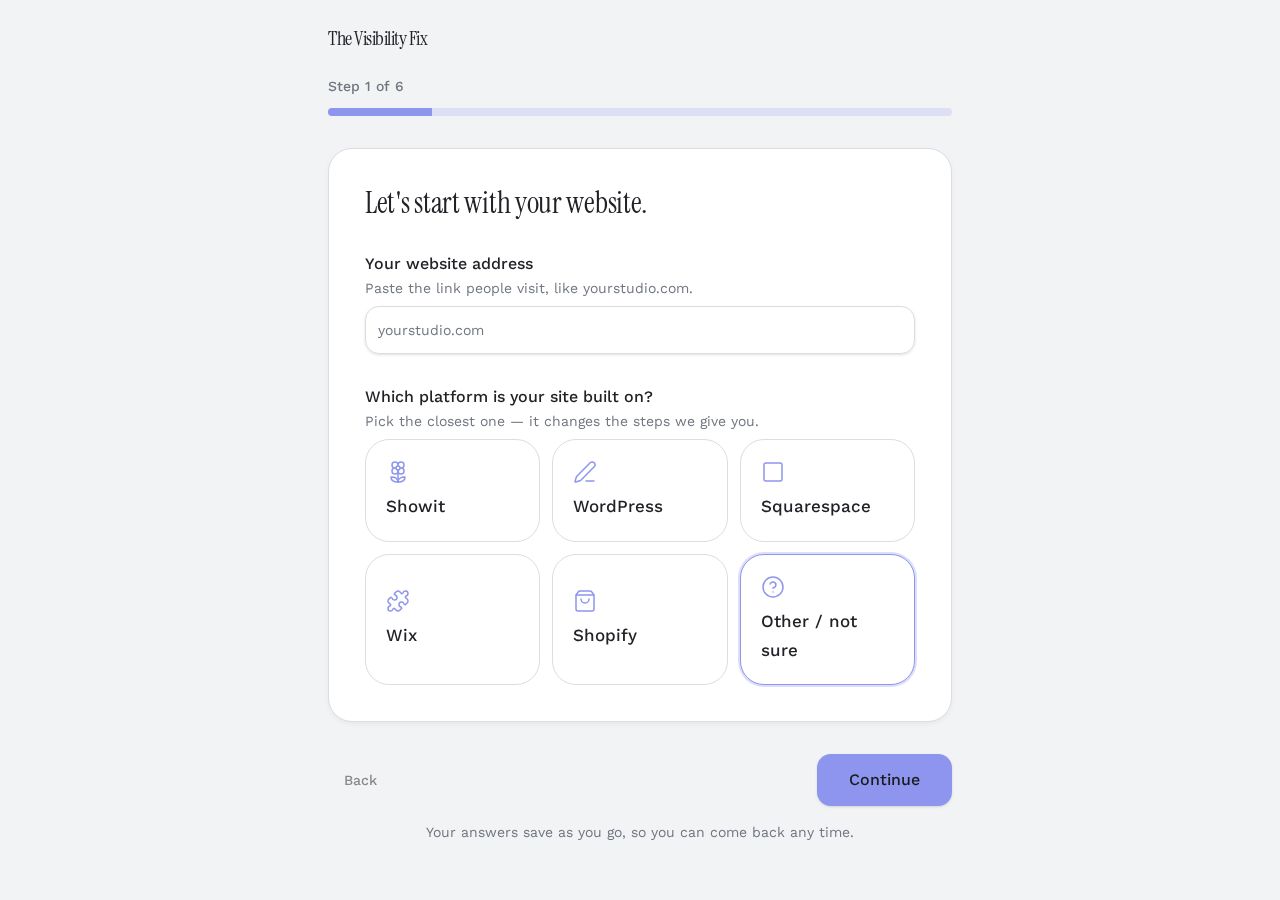
Answers save as you go, so you can stop and come back any time.
- Your website address and platform (Showit, WordPress, Squarespace, Wix or Shopify).
- Your business: what you do, who for and where.
- Your social profiles — paste your bios.
- Your Google Business Profile and reviews.
- Other listings and mentions, plus your name, address and phone.
- A review screen where you can edit anything, then press “Check my visibility”.
Step 3: How to read your results
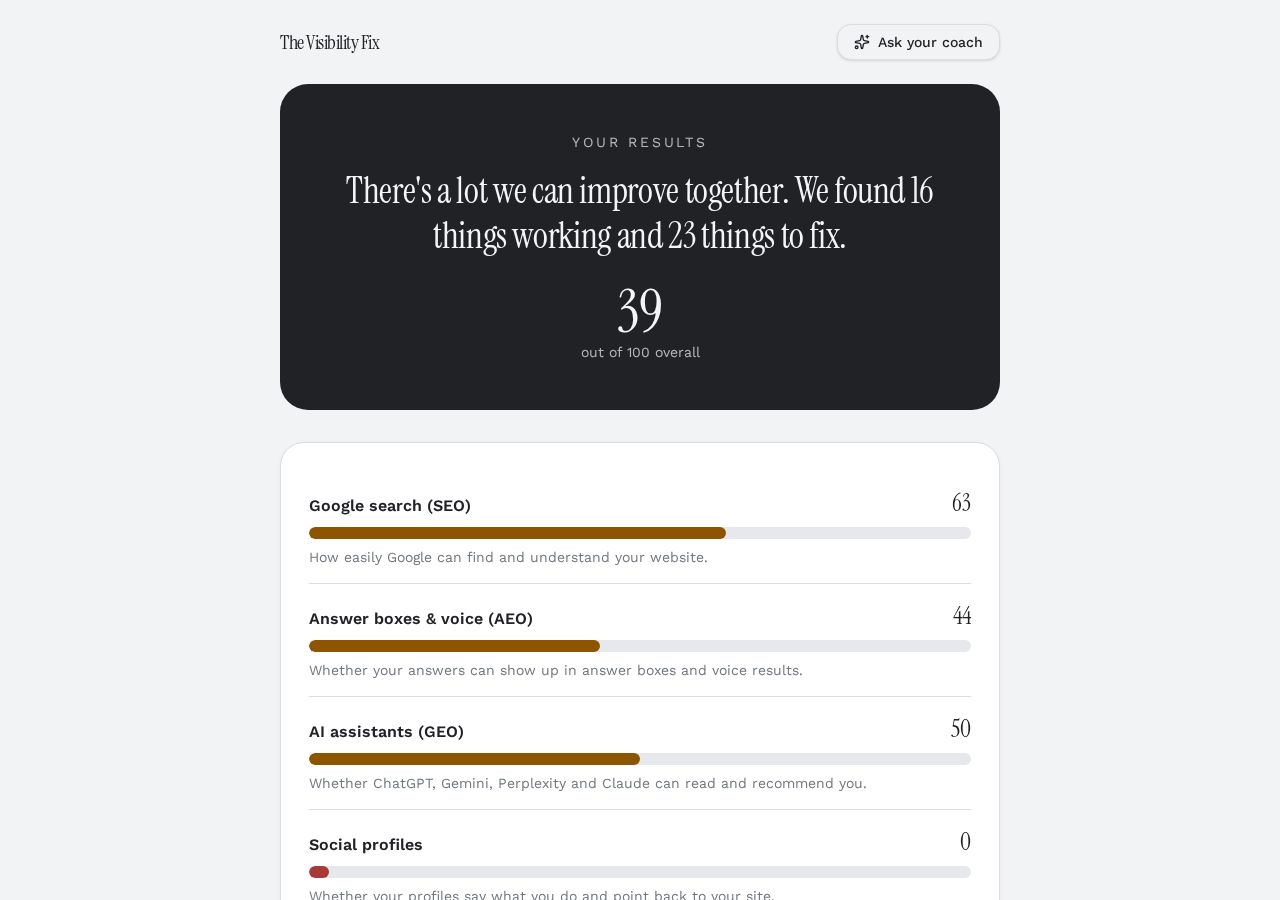
The big number is your overall score out of 100. Higher means you are more likely to be shown when someone searches for what you do. The top line tells you how many things are already working and how many need fixing.
- Google search (SEO): how easily Google can find and understand your site.
- Answer boxes & voice (AEO): whether your answers can be lifted into answer boxes and voice results.
- AI assistants (GEO): whether ChatGPT, Gemini, Perplexity and Claude can read and recommend you.
- Social profiles: whether your bios say what you do and link back to your site.
- Under 50 means big quick wins are waiting. 50–75 is a solid base. Over 75 means you are polishing.
Step 4: Understand each fix
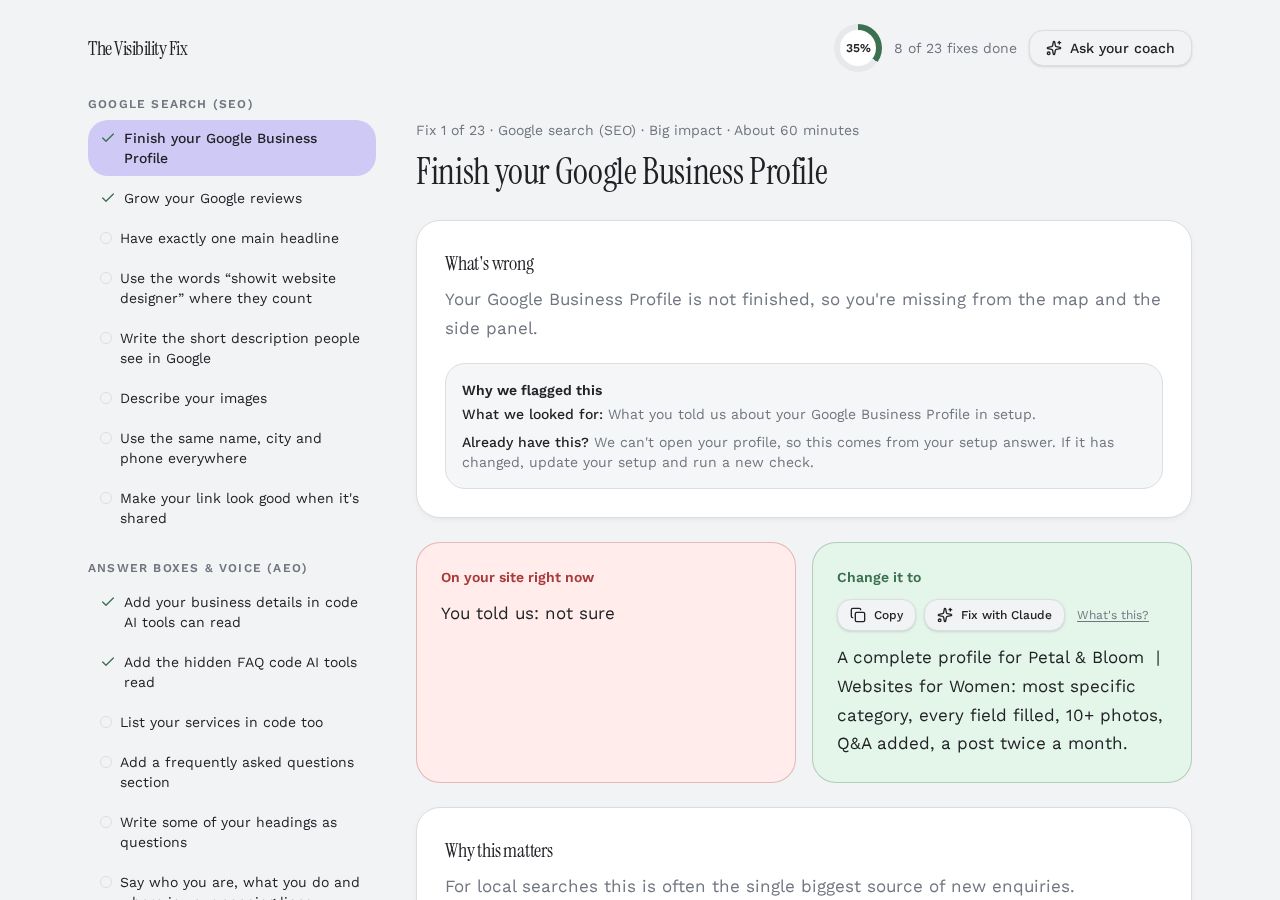
Fixes are in order of impact, so start at the top. The list on the left shows your progress; ticked items are done.
- What's wrong: the problem in one plain sentence.
- Why we flagged this: what we looked for, and what to do if you think you already have it (for example, an FAQ that isn't titled “FAQ”).
- On your site right now (red): what we actually found.
- Change it to (green): the new wording, ready to copy.
- Why this matters: what you gain once it is fixed.
Step 5: Put the fix in place
- Press Copy on the green box.
- Follow the numbered steps for your platform — the grey click-path shows exactly which menus to open.
- Paste, save and publish your site.
- Back in the app, press “I did it — next fix”. Your progress saves automatically.
- Stuck? Press “Ask your coach” and describe what you see.
Step 6: Let Claude make the change for you
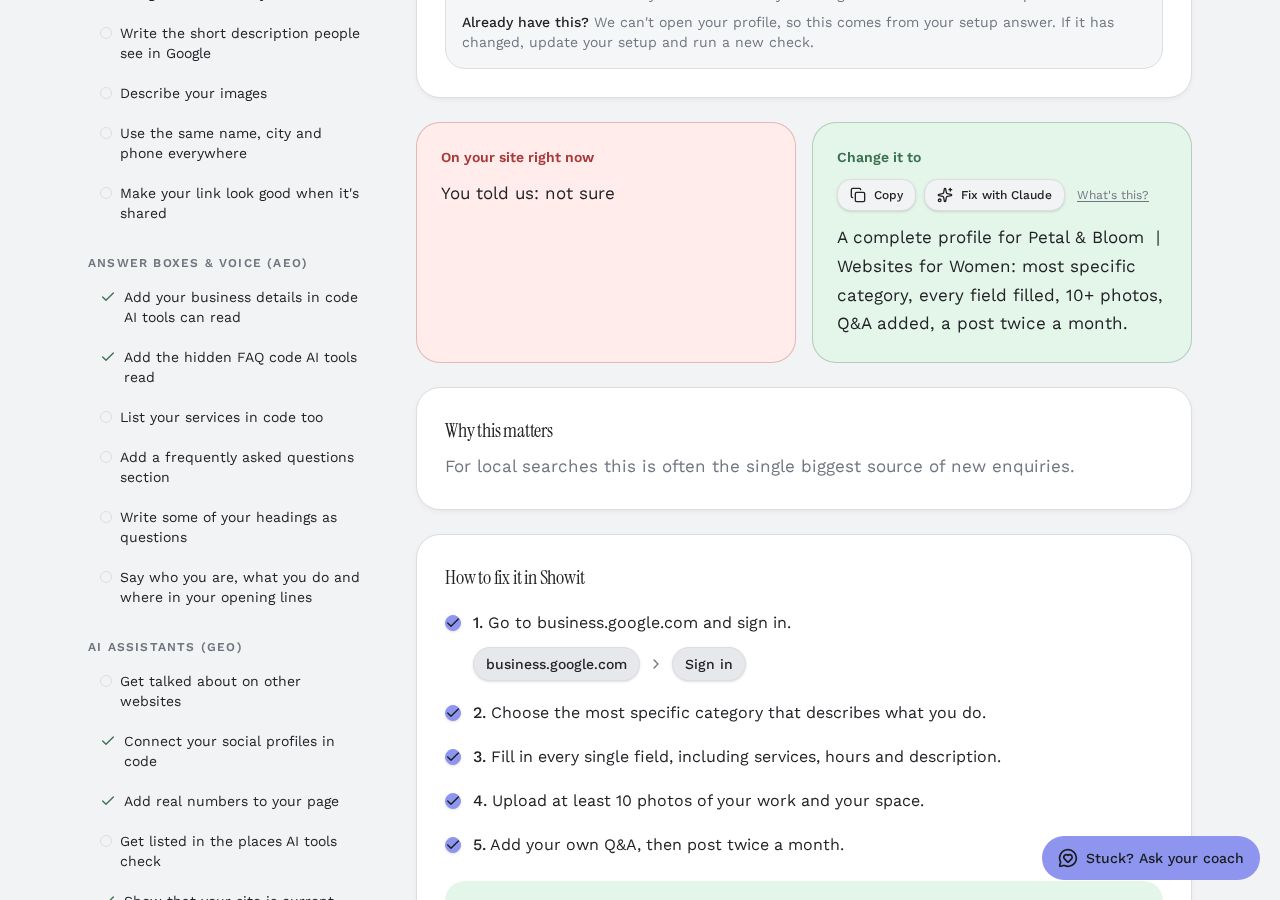
If you'd rather not make the edit yourself, use Claude, a free AI assistant from Anthropic. The Fix with Claude button writes the instruction for you: your platform, your website, what it says now, what to change it to, and a rule to change nothing else.
- Open your website editor (Showit, WordPress, Squarespace, Wix or Shopify) in another tab and sign in.
- On the fix screen, press “Fix with Claude”. The instruction is copied and Claude opens in a new tab.
- Click in Claude's chat box, paste (Cmd+V on a Mac, Ctrl+V on Windows) and press enter.
- If you use Claude's browser extension, it can make the change in your editor. Otherwise it walks you through each click.
- Claude shows you what it's about to change and asks before saving. Check it, publish, then press “I did it — next fix”.
Step 7: Connect Google to see your real rankings
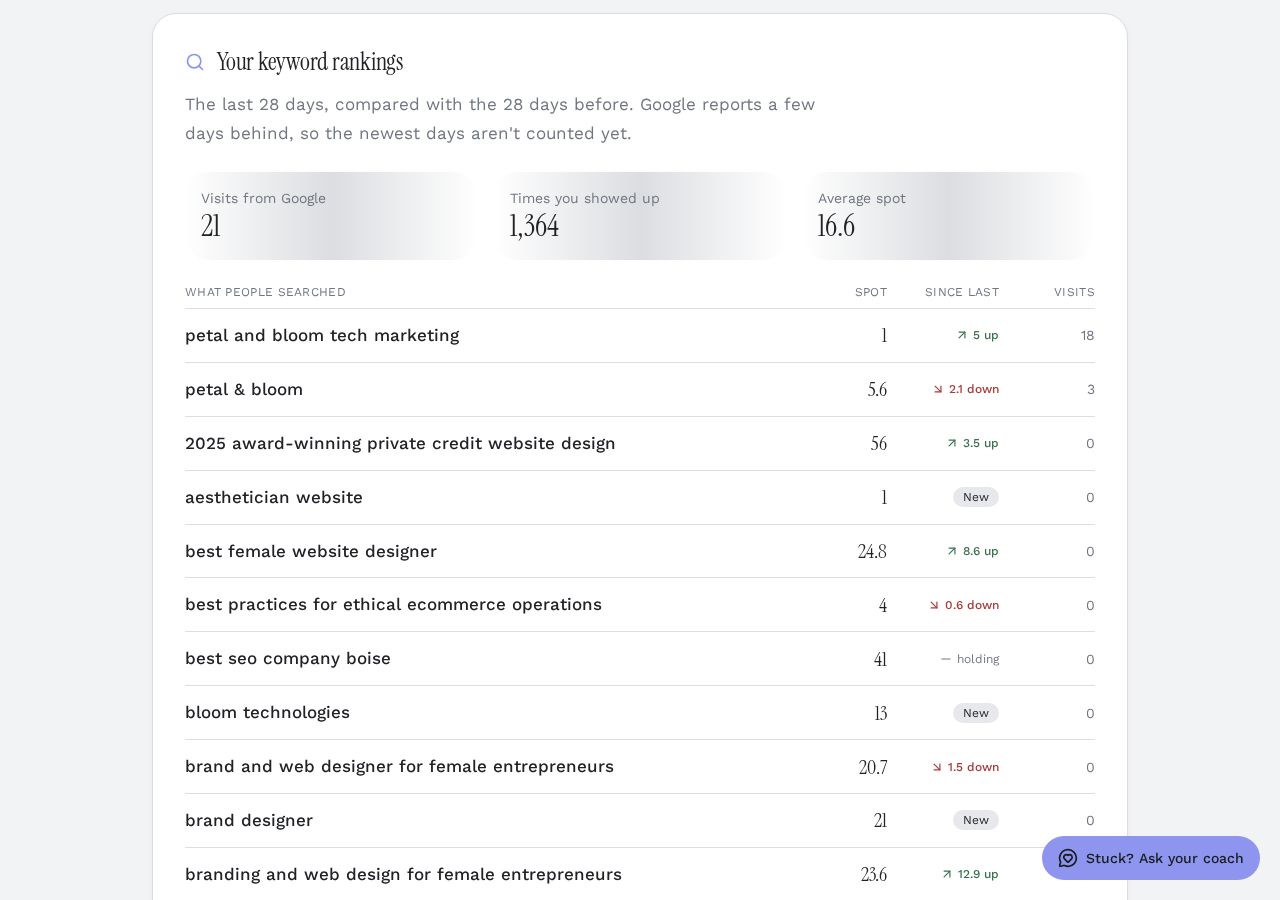
Connecting Google Search Console shows the searches people actually use to find you, your spot on Google for each one, and whether it's going up or down. We can only read this information; we can't change anything in your Google account.
- On your dashboard, find “Your keyword rankings” and press “Connect Google”.
- Sign in with the Google account that has your website in Search Console, then press Allow.
- Pick your website from the list. Your numbers appear within a few seconds.
- No Search Console yet? Set it up free at search.google.com/search-console first. Google can take a few days to collect data.
- After you finish a batch of fixes, come back here each month to see which searches are climbing.
Step 8: Track your progress on the dashboard
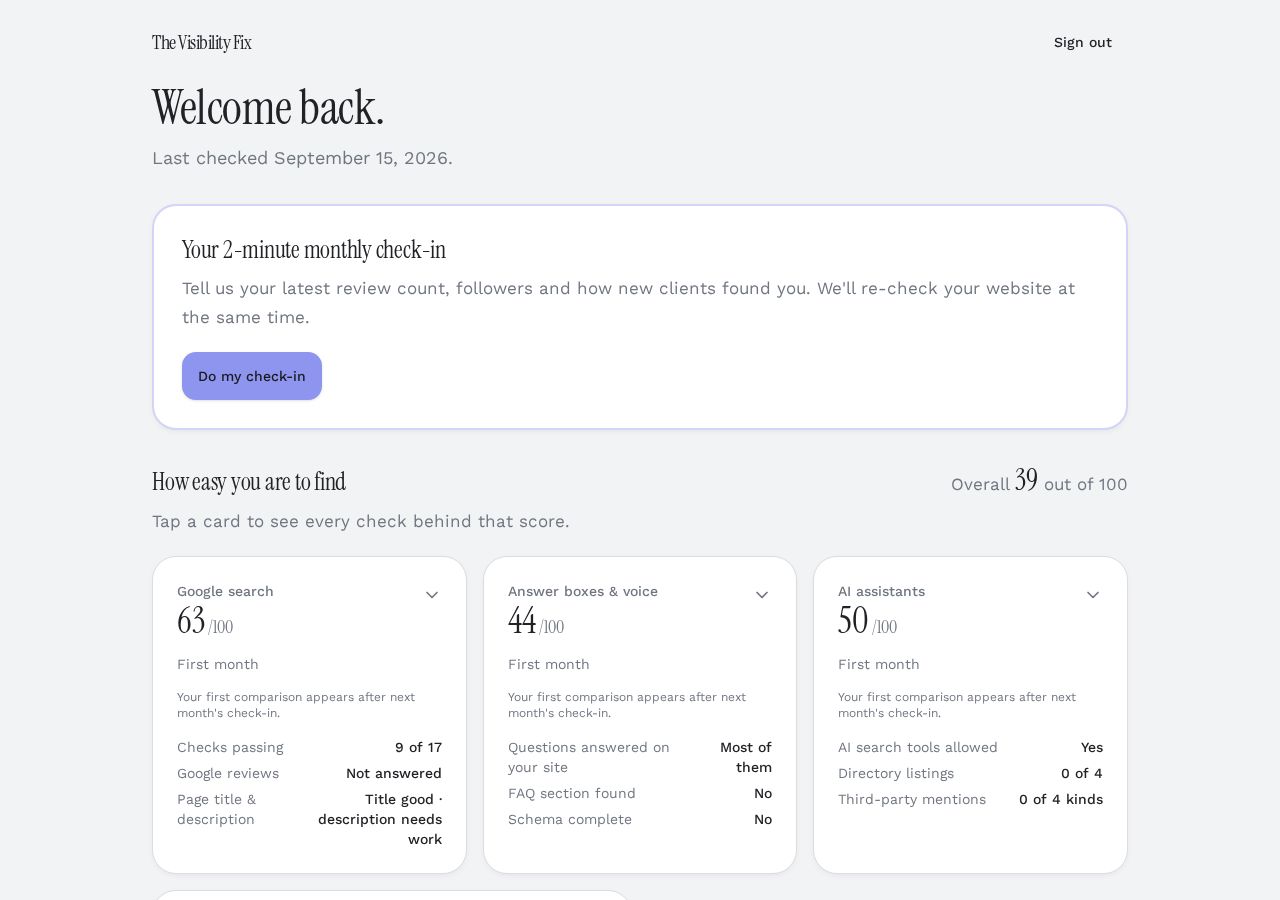
Your dashboard shows your scores, what changed since last month and how many fixes you have done. Each month you get a short check-in email: add your latest review count and followers, and we re-check your site so you can see your score climb.
Quick answers
- Do I have to do every fix? No. Start with the top three — they have the biggest impact.
- What if a fix is wrong for my site? Check “Why we flagged this”, then ask the coach. If it has changed, run a new check.
- How soon will my score change? Run a new check after you publish your changes to see your score update.
How to tell it is working
Your score goes up after each re-check, more checks show as working, and over the following weeks you should notice more people finding you through Google and AI assistants. Keep going one fix at a time.
Want this done for your site, one fix at a time?
The Visibility Fix checks your website, Google profile and social bios, then walks you through the fixes in plain English.
See how The Visibility Fix works